

How to generate posts using your own knowledge base (context window)
Learn how to use folders and files in admark.ai to generate posts based on your custom knowledge and product data.
admark.ai allows you to generate AI-powered posts based on your own content – such as documents, product data, or internal material. By uploading files into folders, you create a custom context window that the AI can use for more relevant, company-specific output.
This guide will walk you through the process of:
-
Uploading your own documents and data
-
Creating folders to structure your knowledge base
-
Referencing these folders when generating posts
Step 1: Add a Folder in the File Manager
Section titled “Step 1: Add a Folder in the File Manager”-
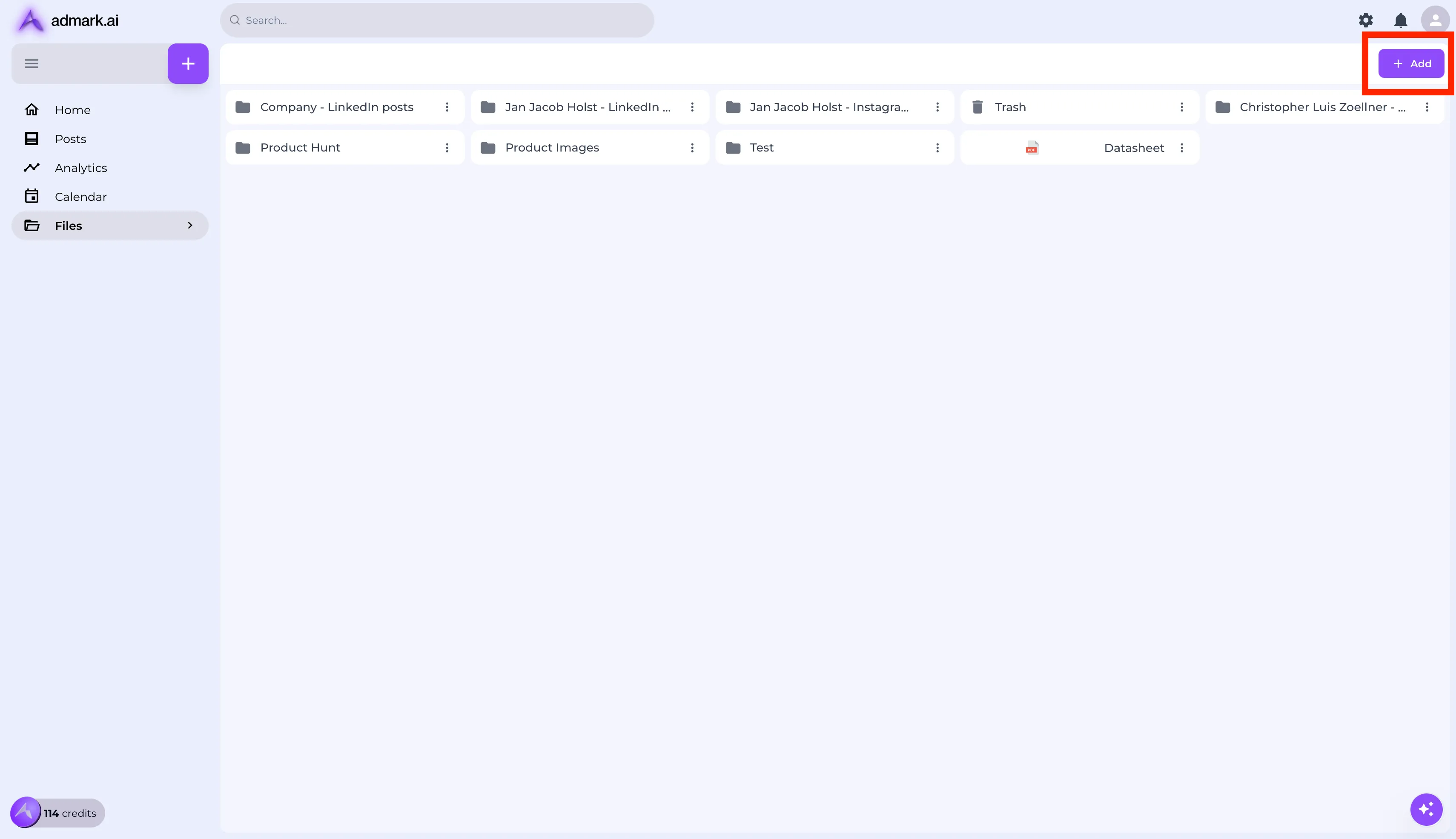
In your admark.ai dashboard, go to the Files section.
-
Click New Folder or New Product.
-
Enter a name for your folder (e.g., “Product Info” or “Sales Decks”).
Step 2: Upload Documents
Section titled “Step 2: Upload Documents”-
Double-click your newly created folder to open it.
-
Click Upload to add documents, PDFs, or other materials.
-
You can add multiple files – for example, product descriptions, internal guides, or internal documents.
💡 Tip: Try to group related files by topic or product line to keep things organized.
Step 3: Generate a Post Using the Folder Context
Section titled “Step 3: Generate a Post Using the Folder Context”-
Click the + icon to create a new post.
-
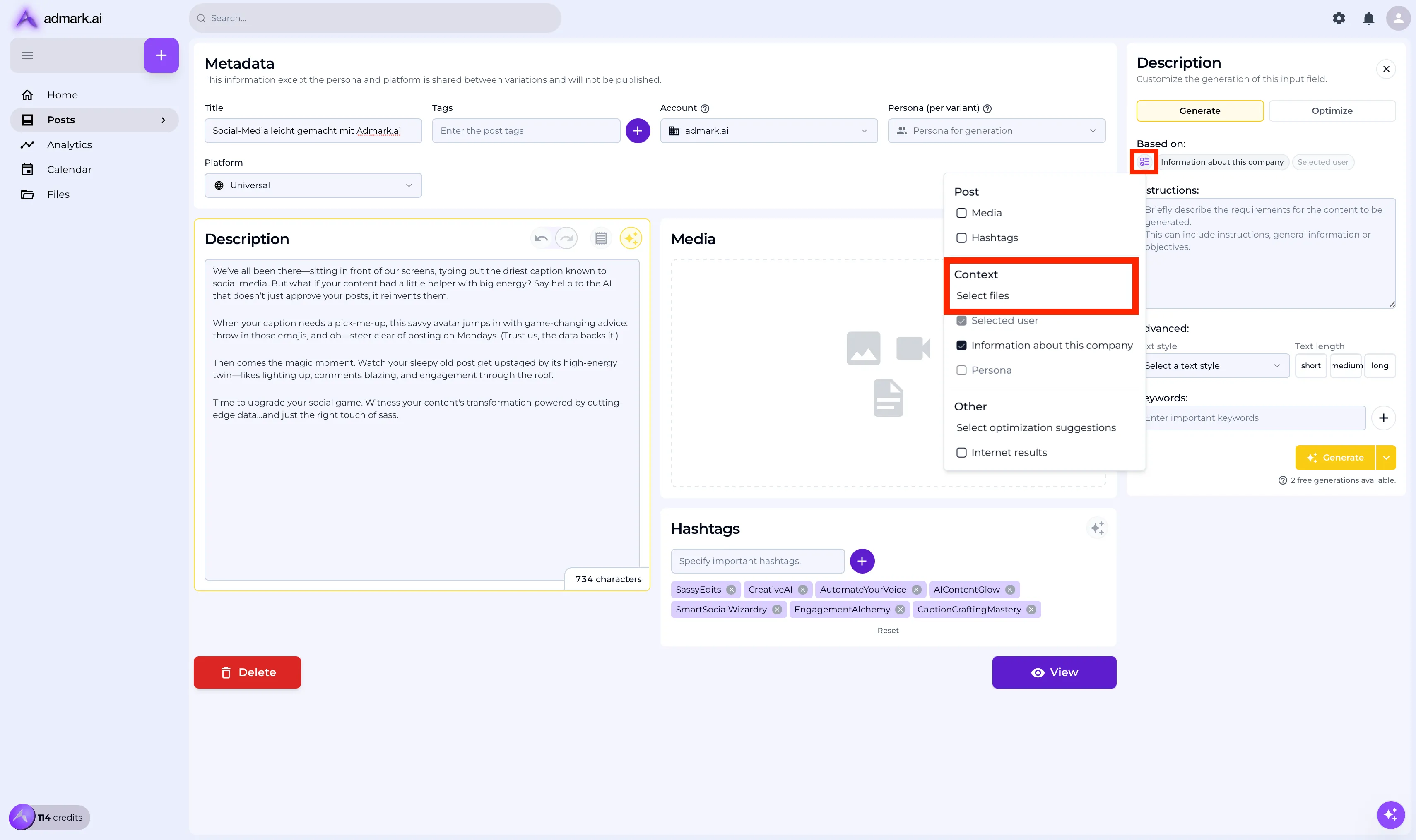
In the post editor, click the ⭐ (star icon) next to the description field.
-
You’ll see an option to reference a folder – select the one that contains your relevant documents.
-
admark.ai will now use that folder’s contents as context to generate a personalized post.
Troubleshooting Tips
Section titled “Troubleshooting Tips”- 📁 If your folder doesn’t appear, refresh the page or check file upload permissions.
- 🧠 Make sure uploaded files are text-based and contain useful content (avoid empty PDFs or images).
- 🔄 If content seems irrelevant, try renaming files and structuring the content more clearly.
Need Help?
Section titled “Need Help?”If you run into issues using context windows or uploading files, reach out to [email protected].