
How to generate and publish posts for employees
This guide explains how to create AI-generated social media posts for employees using admark.ai.
With admark.ai, you can generate personalized posts for your employees to support employer branding, increase reach, and promote thought leadership.
This guide will walk you through the process of:
-
Starting a new employee post
-
Selecting the correct account
-
Generating a post description based on the employee
-
Adding custom prompts and optimizing
-
Publishing the post on the employee’s social media accounts
Step 1: Start a New Post
Section titled “Step 1: Start a New Post”-
Log in to your admark.ai dashboard.
-
Click the + (plus icon) to create a new post.
Step 2: Choose the Employee Account
Section titled “Step 2: Choose the Employee Account”-
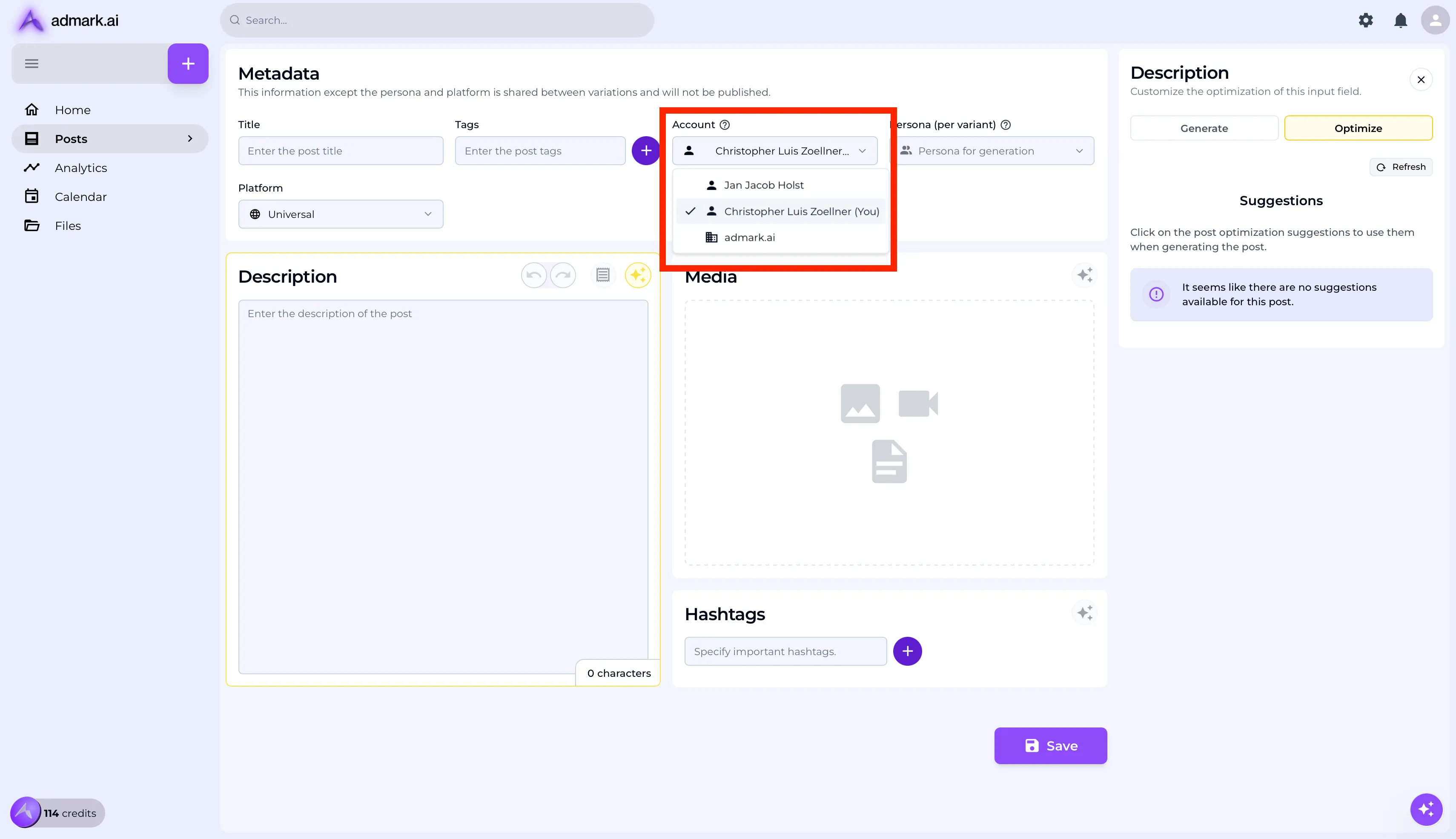
In the Meta Data section, select the employee account for which the post should be created.
-
Make sure the correct account is selected before continuing.
Step 3: Generate a Description Based on the Employee
Section titled “Step 3: Generate a Description Based on the Employee”-
Click the ⭐ (star icon) on the description to automatically generate a post description based on the employee’s profile. (The employee can edit their profile here)
-
If no content appears, ensure generating based on the employee is selected.
-
You can freely edit or refine the generated description afterward.
💡 Tip: admark.ai can use stored employee data to generate content that reflects the person’s role, achievements, or tone of voice.
Step 4: Optimize
Section titled “Step 4: Optimize”-
Optionally, click the optimize tab to adjust or use our data-driven optimization suggestions.
-
Modify additional factors such as tone, length, or post type to your liking.
-
Once you are satisfied with the content, click Generate to finalize the post.
Step 5: Publish or Schedule
Section titled “Step 5: Publish or Schedule”-
Click Save/Overview to preview the post.
-
Choose the platform(s) where the post should go live.
-
Click Publish to post immediately or select a future date/time to schedule.
💡 Hint: The post will be published on the selected platform(s) which the employee connected on their profile settings.
Troubleshooting Tips
Section titled “Troubleshooting Tips”- 🧑💼 Ensure the correct employee is selected before generating content.
- ✏️ Use short and clear prompts for more targeted results.
- ⏱️ If data was recently updated, allow a few minutes before trying to generate again.
Need Help?
Section titled “Need Help?”Reach out to [email protected] if you’re experiencing issues with employee content generation.