
How to Connect Instagram and Facebook to admark.ai
Instagram & Facebook require a specific setup to be able to connect with 3rd party applications like admark.ai. This guide will help you set up your accounts correctly.
To use Instagram with admark.ai, you must first ensure that your Instagram account is a Professional or Creator (Business) account and is properly linked to a Facebook Page. This is a requirement from Meta (Facebook’s parent company).
This guide will walk you through the process of:
-
Preparing your Instagram and Facebook accounts.
-
Connecting them with each other.
-
Finally, linking them to admark.ai.
Step 1: Ensure Your Instagram Account is a Business Account
Section titled “Step 1: Ensure Your Instagram Account is a Business Account”Only Instagram Business accounts can be used with third-party tools like admark.ai. To convert your account:
-
Open the Instagram app and go to your profile.
-
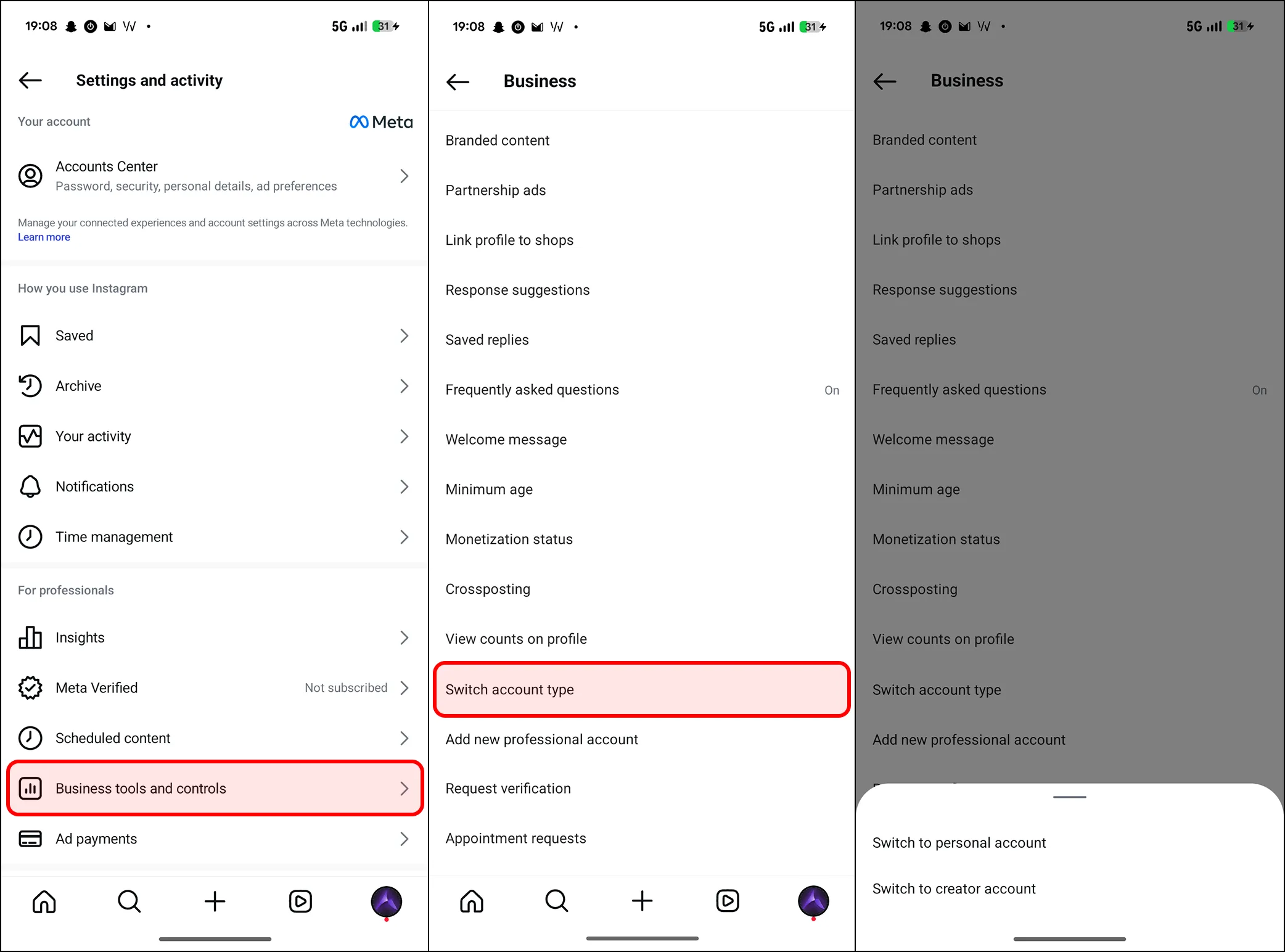
Tap the menu (☰) in the top-right corner and choose Business tools and controls, then navigate to Switch account type.
-
If one option says Switch to personal account, you are already on a Business account. Else, select Switch to professional account or Switch to creator account, then follow the on-screen steps.
Step 2: Link Instagram to a Facebook Page
Section titled “Step 2: Link Instagram to a Facebook Page”Meta requires your Instagram Business account to be connected to a Facebook Page that you manage:
-
Open the Facebook website on a desktop and login with your account.
-
Go to your Facebook Page (not your personal profile) which you want to connect your Instagram account with. You can do this by clicking on your profile picture at the top right and then select your page.
-
After that, go to facebook.com/settings/?tab=linked_instagram. You can manually navigate there by going to Settings & privacy > Settings > Linked accounts > Instagram.
-
Click Connect account, then log into your Instagram Business account and confirm the connection.
Alternatively, you can connect Facebook from the Instagram app:
-
Open the Instagram app and go to your profile.
-
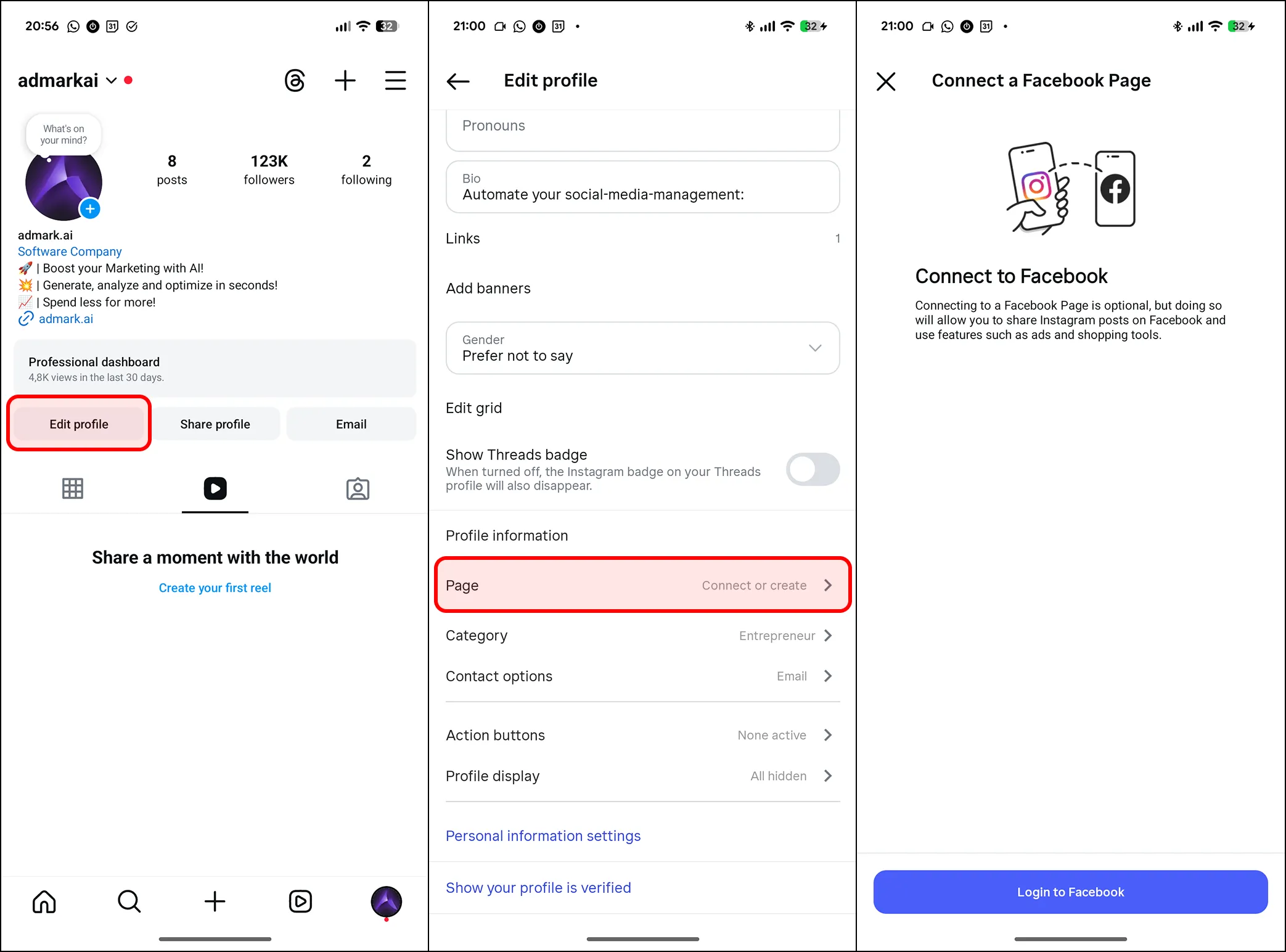
Tap Edit profile, then scroll down and click on Page as shown in the image.
-
Click on Login to Facebook and follow the on-screen steps.
💡 Note: You must be an admin of the Facebook Page to link Instagram.
Step 3: Connect Instagram & Facebook to admark.ai
Section titled “Step 3: Connect Instagram & Facebook to admark.ai”Once your accounts are properly linked on Meta’s side, you can connect them to admark.ai.
Option A: Connect to Your User Profile
Section titled “Option A: Connect to Your User Profile”-
Click Connect account under “Social Accounts”.
-
A new window will appear prompting you to authorize with Facebook.
-
Follow the on-screen steps to grant admark.ai permission to manage your Instagram and Facebook assets.
Option B: Connect to a Company Profile
Section titled “Option B: Connect to a Company Profile”-
Locate the Social Media section and click Connect account.
-
Just like in the user setup, a popup will guide you through Facebook’s permission flow.
-
Choose the correct Facebook Page and associated Instagram account.
Troubleshooting Tips
Section titled “Troubleshooting Tips”- ✅ Ensure you’re logged into the correct Facebook account before beginning.
- 🔐 You must accept all permissions Facebook asks for when prompted.
- 🔄 If you recently converted to a Business account or linked to a Page, it might take a few minutes for the changes to propagate to Facebook’s API.
Need Help?
Section titled “Need Help?”If you still run into issues after troubleshooting, contact [email protected].